If you live in Spain or are applying for a residence permit — for example, the self-employment residence permit — sooner or later you will need a certificado digital — a digital signature that allows you to handle most matters with government agencies online.
With a certificate you can:
submit documents for residence permit and renewal
send requests to extranjería
file tax returns with Hacienda
work with Seguridad Social
sign documents online
Certificado digital — is not a single document. In Spain, there are several types of digital certificates because they are issued by different certification authorities.
We have prepared a step-by-step guide for you on obtaining one of the most common certificates — Certificado de Ciudadano from the Istec center (Infraestructures i Serveis de Telecomunicacions i Certificació, SA)
Instructions for Certificado digital (ACCV) Online Application
Step 1. Open the official ACCV website: https://www.accv.es
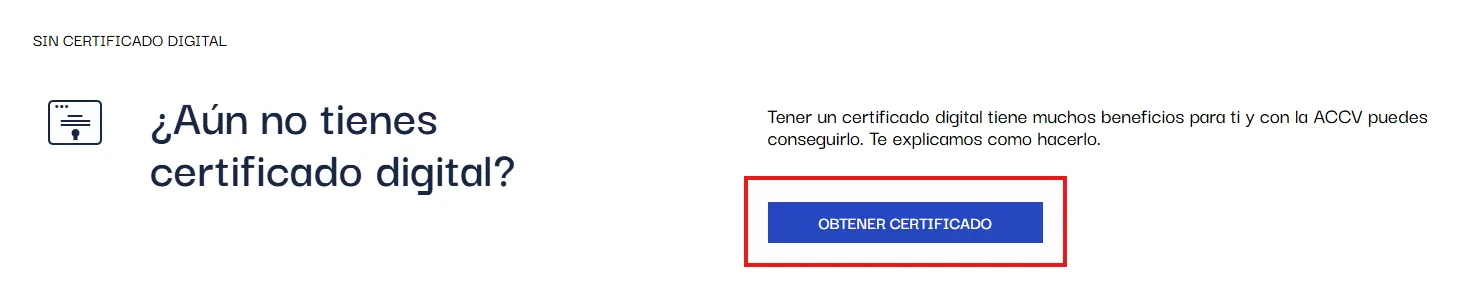
Go to the page https://www.accv.es/tu-area/, scroll down and click on the "OBTENER CERTIFICADO" button:
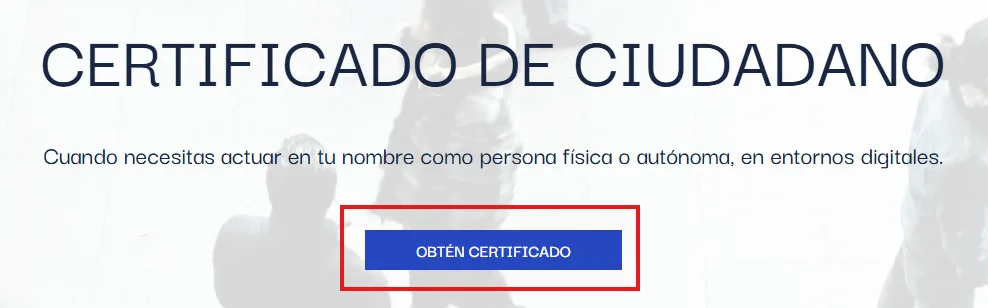
On the newly opened page, click on the "OBTÉN CERTIFICADO" button:
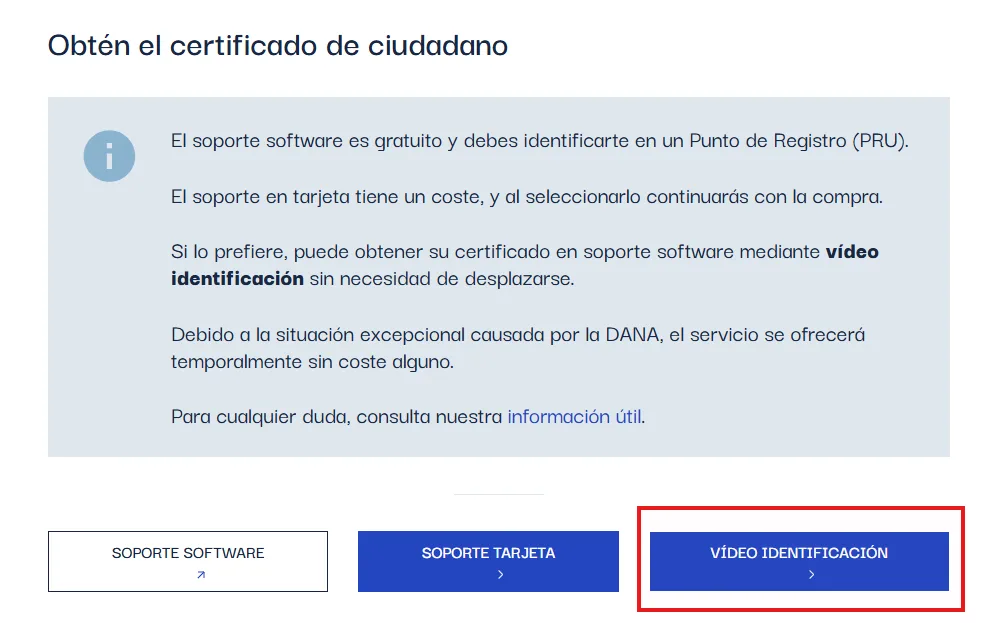
Then select the "VÍDEO IDENTIFICACIÓN" button:
Step 2. Fill in your details: NIE, full name, city and province
Enter your NIE number:
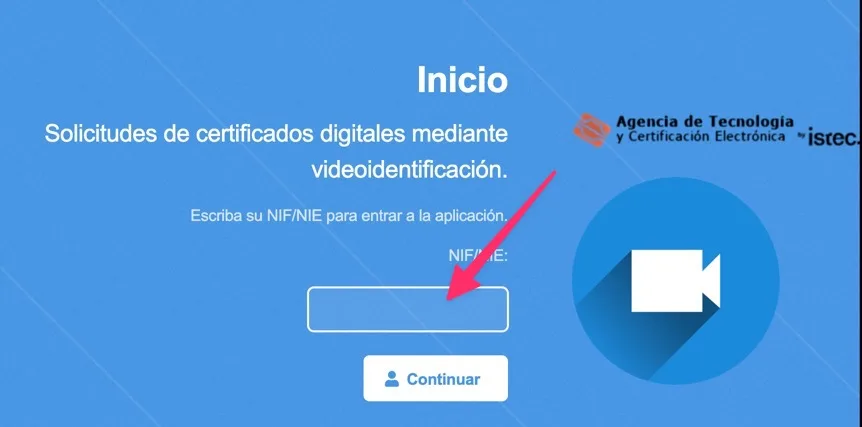
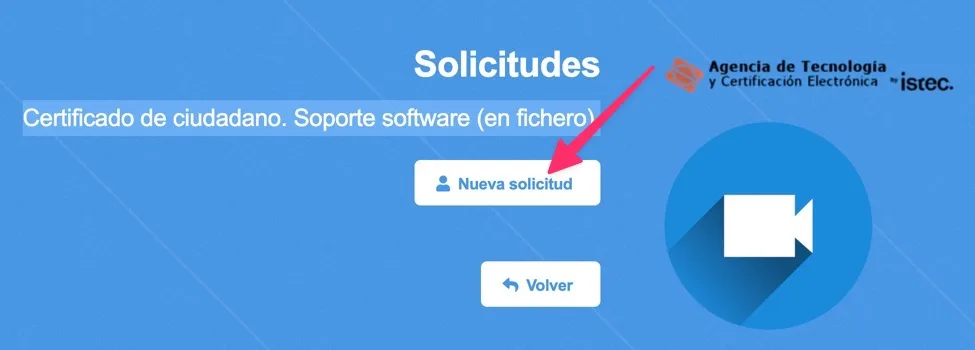
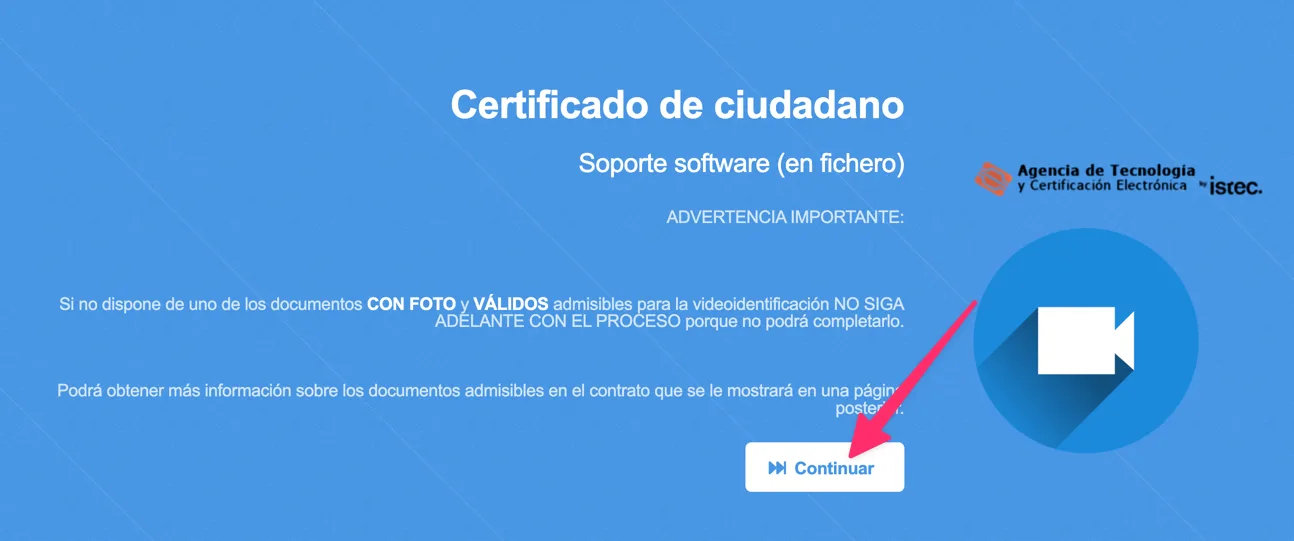
First click on the "Nueva solicitud" button, then on the "Continuar" button:
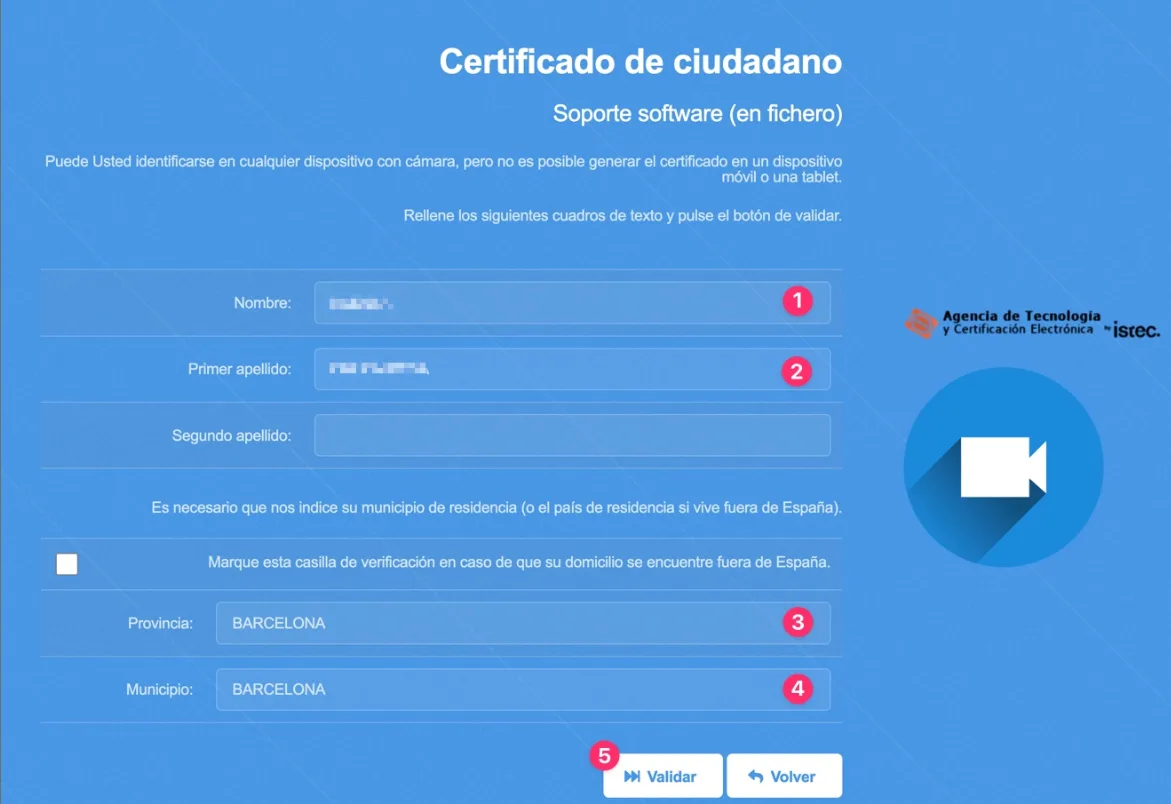
Next, enter your first and last name, city of residence in Spain and province:
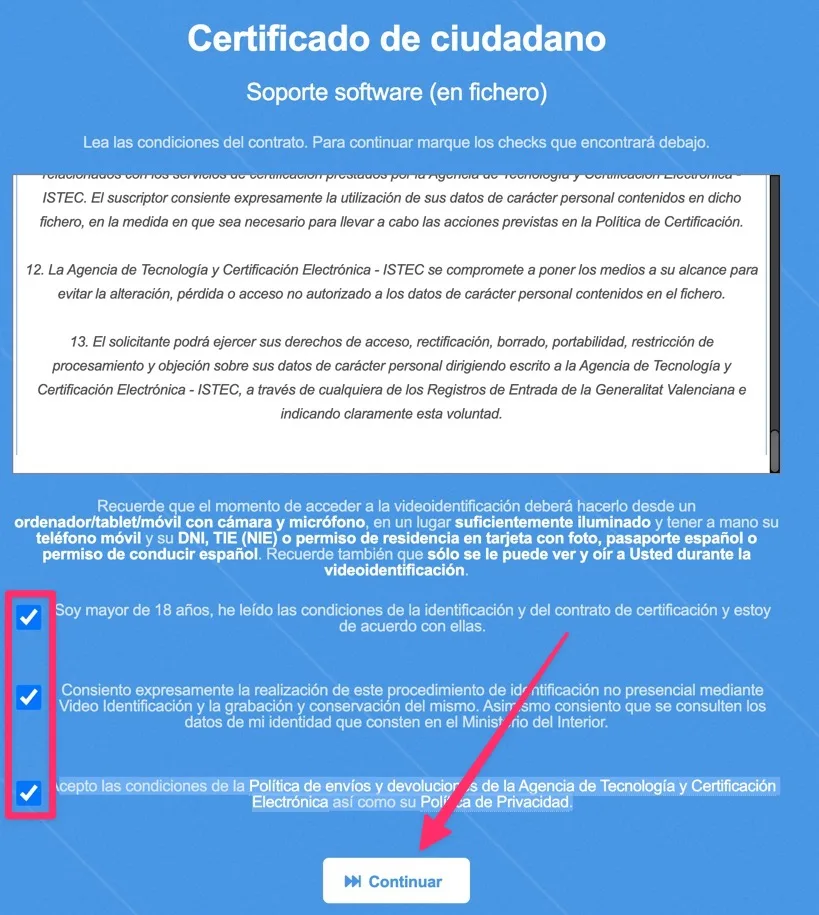
Step 3. Confirm consent to data processing
Check all 3 boxes and click on the "Continuar" button:
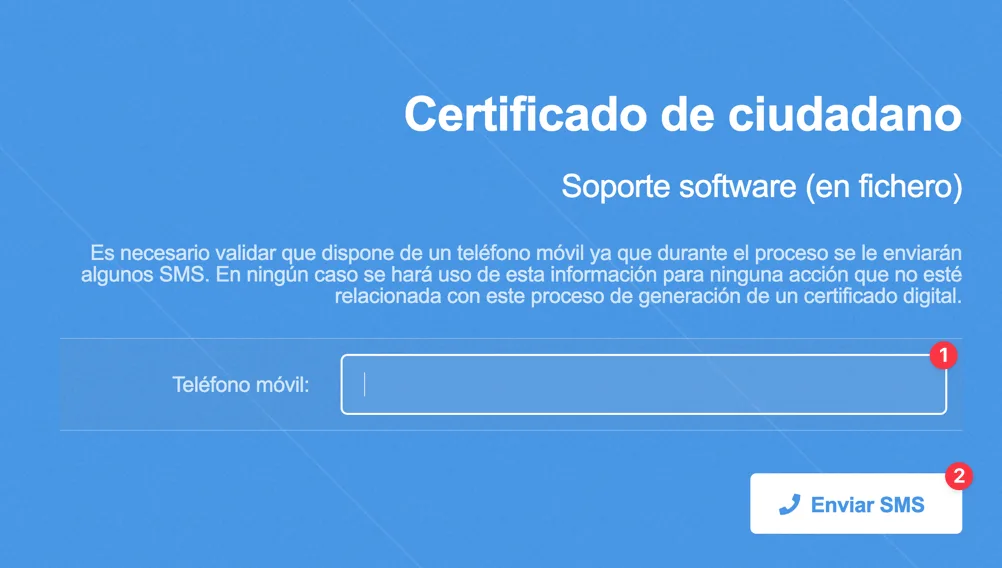
Step 4. Confirm your phone number and email
Enter your current phone number and click on the "Enviar SMS" button:
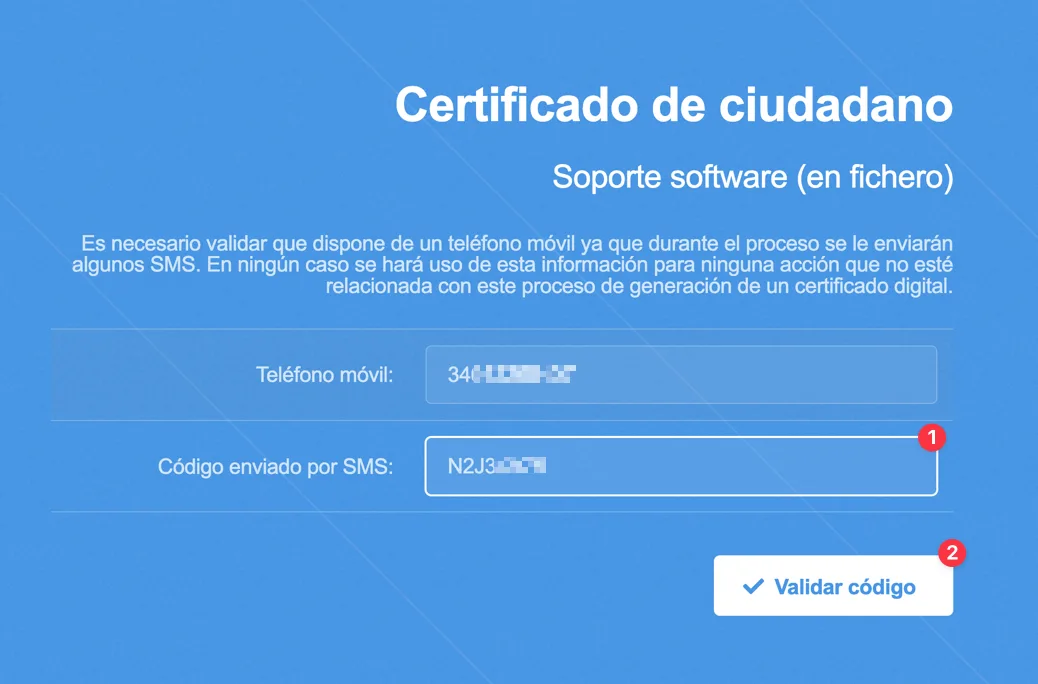
You will receive an SMS with a code to the specified phone number, which you need to enter in the next window:
After this, you will receive an email with a link to continue the process. Follow the link from the email to start the video identification process.
Step 5. Video identification
1. First, verify your TIE: point your phone camera at the TIE card, clearly placing it inside the rectangular frame (on both sides).
IMPORTANT RECOMMENDATIONS:
lighting should be good, preferably natural, otherwise the system may later produce an image quality error
be careful: sometimes the system immediately asks you to rescan the front side of the TIE
2. Then complete the video identification (you may need to smile at the camera)
If there is any background noise or another voice during video identification, there is a high probability of rejection, and the procedure will have to be repeated. Don't worry about this: we had an experience where video identification was successfully completed only on the 4th attempt.
The main recommendation is to go through the entire process in silence and from start to finish independently, without the participation of other people. If an outsider appears in the frame, even after completing the video identification, a rejection may arrive by email.
3. After successful identification, you will receive a confirmation email.
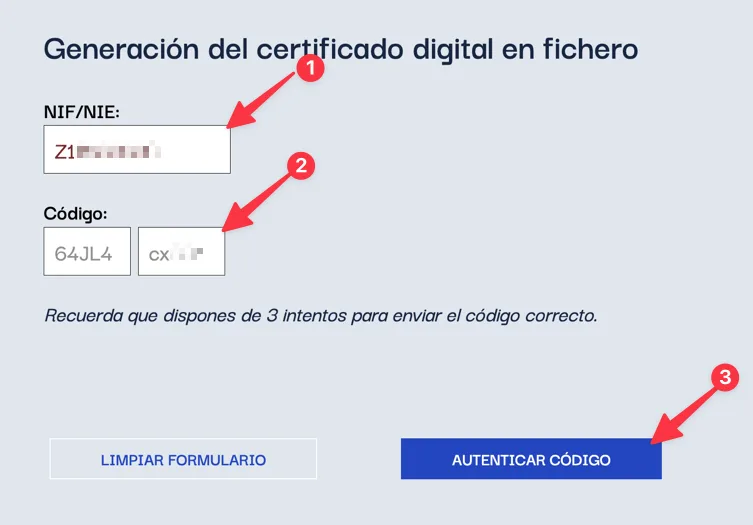
Step 6. Confirm the correctness of the entered data (NIE, code, email)
Follow the link from the email, enter your NIE and the code consisting of two parts, and click on "AUTENTICAR CÓDIGO":
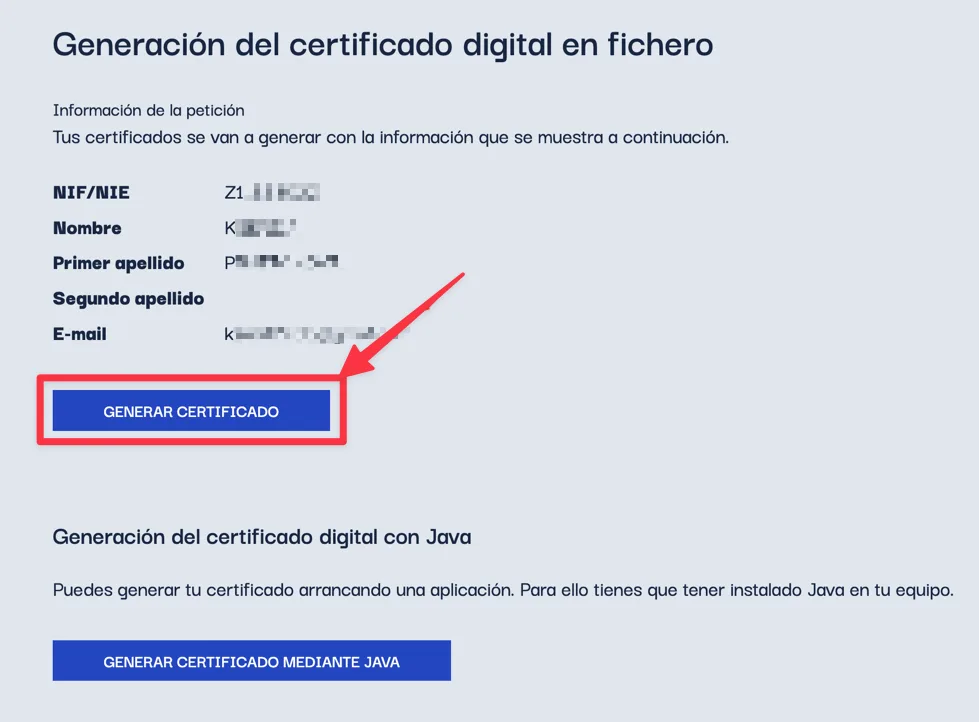
Next, check that all your details are correct (email, NIE, etc.) and click on the "GENERAR CERTIFICADO" button:
Step 7. Download the ready certificate
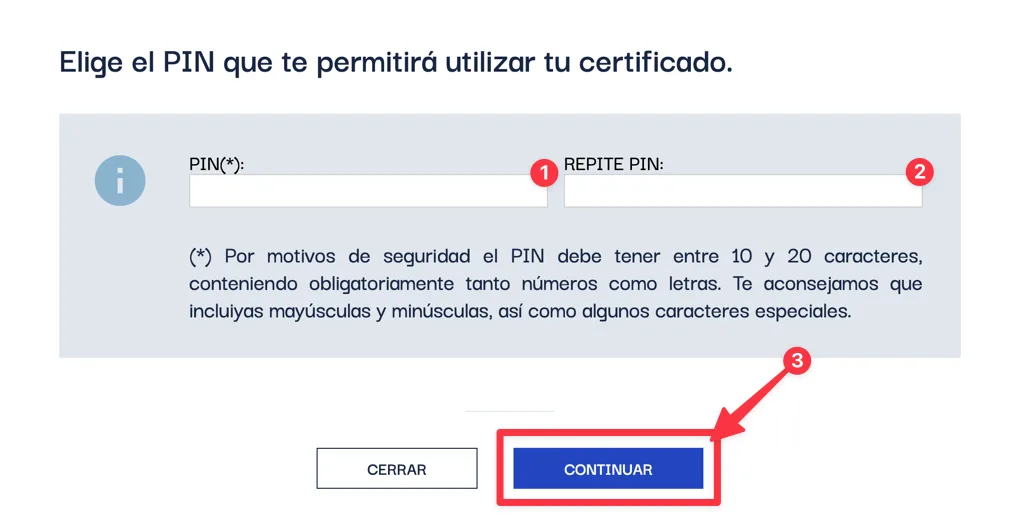
In the window that opens, enter a PIN code for the certificate (at least 10 characters, numbers and letters) and click on the "Continuar" button:
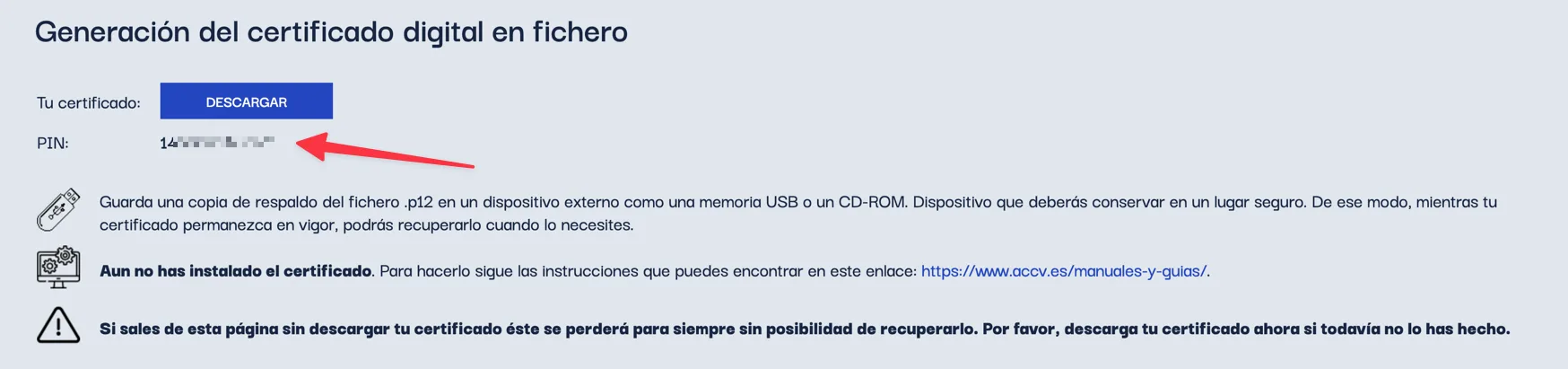
After this, the automatic download of the ready certificate to your computer will begin. If something went wrong — you can download the certificate again and view the PIN: